
How to Install CentOS 7 on VirtualBox in Windows 8 / Windows 10 - Learn Online

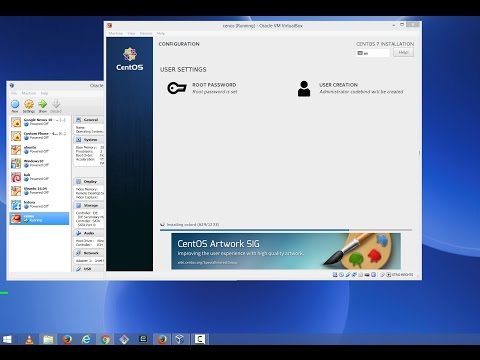
I this video I am going to show step-by-step how to install the CentOS 7 Linux distribution on VirtualBox for pure and open source virtualization of your testing and development environments.
Create a New Virtual Machine (VM) with the Virtual Machine Wizard, choosing Linux for the OS Type and Red Hat or Red Hat (64 bit) for the Operating System. Memory should be at least 768MB for a graphical install to work. Next the virtual hard disk wizard will start. The OS disk should be at least 8GB. For a relatively full install, allocate at least 15GB, otherwise use all the defaults. Additional disk[s] can be added later if desired.

Comments

Post a Comment

Popular posts from this blog

How To Install Kali Linux in VirtualBox - Learn Online

in this video I am going to sho you How to install Kali Linux in Virtualbox : Step-by-step . This is A detailed guide on installing Kali Linux on VirtualBox. I am going to show How to Install Kali Linux 2016 + Guest Additions on VirtualBox. Install Kali linux 2.0 on Virtual Box Step by Step Install Kali LInux 2 in VirtualBox Installing Kali Linux 2016.1 on VirtualBox

C++ Programming Tutorial - How to Install Code::Blocks in Ubuntu Linux - Learn Online

Installing Code::Blocks How do I Install Code::Blocks HOWTO: Installing Code::Blocks 10.05 How do you install Irrlicht on Code::Blocks? How do you install CodeBlock on ubuntu? codeblocks /bin/sh: g++: not found Installing codeblocks on ubuntu Installing Code::Blocks on Ubuntu 10.04?

Increase screen resolution for Ubuntu when using VirtualBox - Learn Online

appearance - Improve Screen Resolution in Ubuntu How do I increase VirtualBox resolution Ubuntu on VirtualBox can only show resolution how do I get my ubuntu VM to auto adjust the screen resolution ubuntu - Vagrant/VirtualBox can't resolve Increasing Screen Size/Resolution on a VirtualBox